Emoji Stats Are Here - Nov 28th, 2026

Emoji stats are here! Find out which of your emojis nobody uses, and which ones your members reach for most.
Emoji stats are live today on the dashboard and in Discord commands with the paid Data+ upgrade. Statroles, Statdocks, Message History Sync, and the API gain emojis too, and the FAQ says which upgrade each needs. Statbot has been counting emojis in messages, emoji reactions, and stickers since mid-September 2026, or since it joined your server if that was later. Up to 30 days of stats are ready the moment you add Data+. With History, emoji stats reach back to the day counting began, and a Message History Sync brings in older messages.
This post covers:
- The Emojis Page (Data+)
- Emojis in Discord Commands (Data+)
- Statroles: Emoji Condition (Statroles+)
- Statdocks: Emoji Counter (Statdocks+)
- How Emojis Are Counted
- Message History Sync (History)
- Find the Emojis Nobody Uses (Data+)
- FAQ
- Try It
The Emojis Page (Data+)
Your dashboard has a new Emojis page.
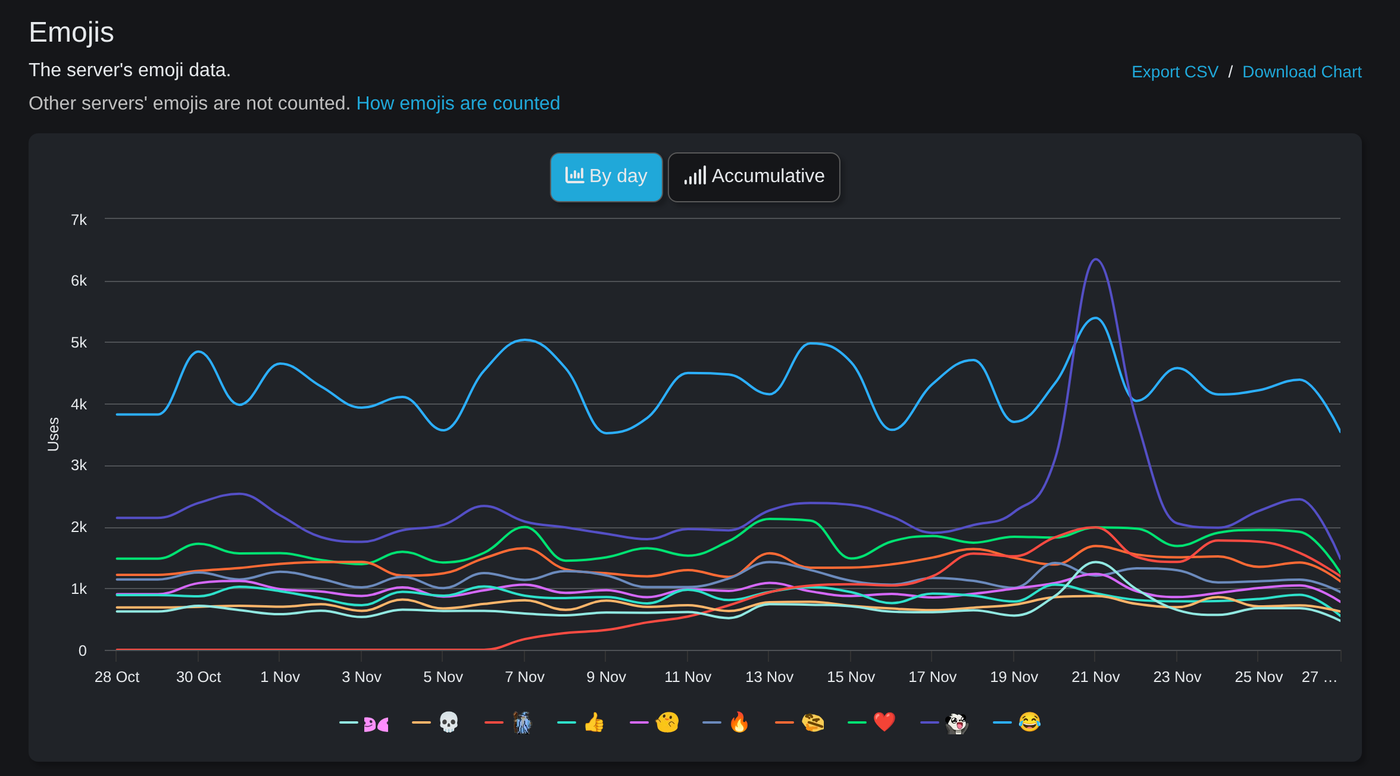
- Server Emojis — Each of your server's own emojis with its uses and the date it was last used. Find the Emojis Nobody Uses further down walks through it.
- Top Emojis — A table that ranks everything your members use, standard emojis and your server's own, with a chart of the top ones day by day.
- Top Stickers — A ranking of your server's own stickers. A sticker with no counted uses in the period is marked Not Seen too.
- Kinds of use — Four kinds are counted: reactions on other members' messages, reactions a member adds to their own messages, emojis in messages, and stickers. View them together or one at a time.
- Filters — Narrow the page to a channel, a member, or a role, to chosen emojis, to a state such as Not Seen or Deleted, or to a type such as animated. That is how you see one channel's or one member's emojis.
- Export CSV — Each table has an export link. Using it needs the Drilldowns upgrade as well as Data+.
Filters change what the page shows, not what Statbot counts. Who can open the page, and who can change its filters, follows your server's dashboard permissions, as for the rest of the dashboard. The Dashboard Filters docs cover every filter.
Emojis in Discord Commands (Data+)
Command replies follow your server's Lookback setting.
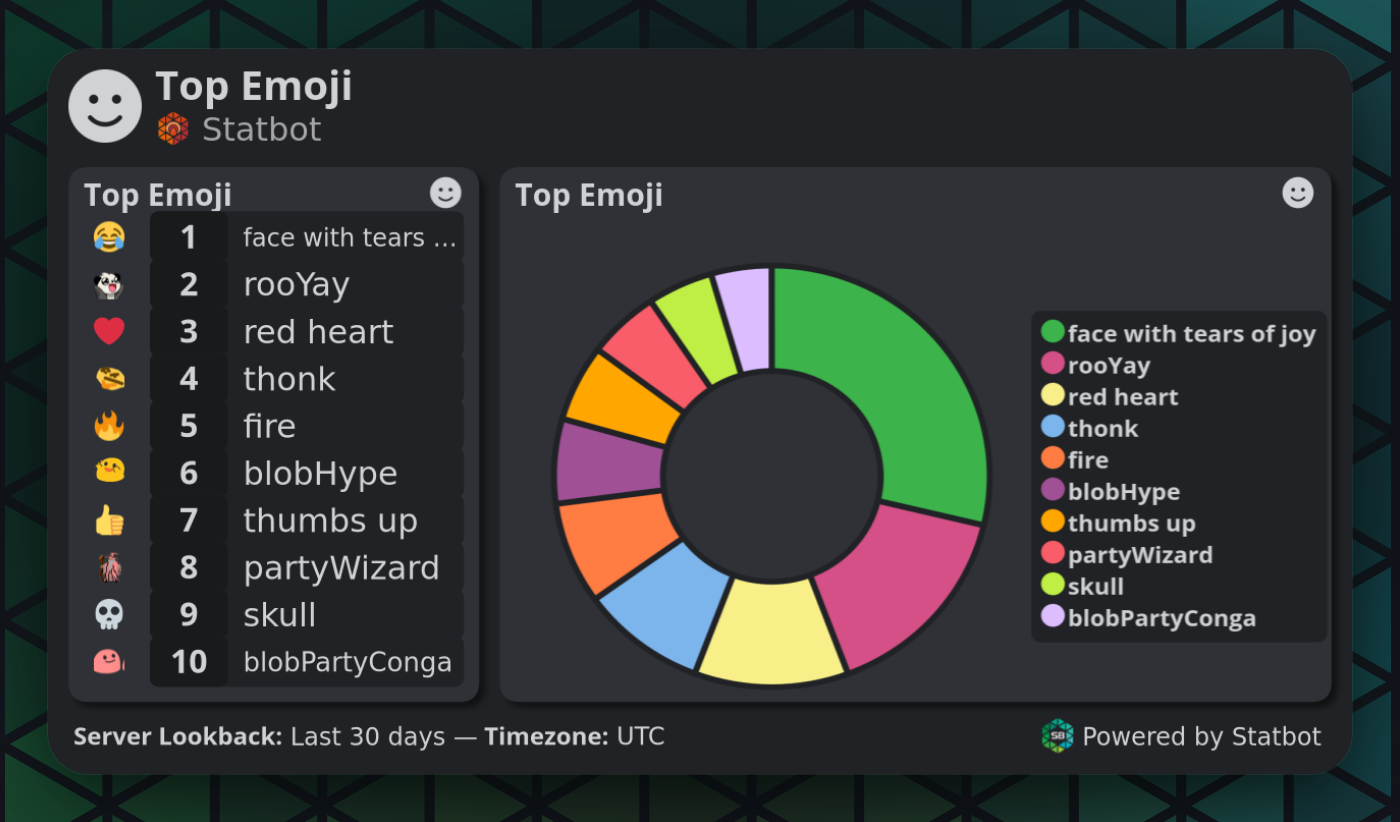
/stats emoji— Your server's top 10 emojis as a list beside a chart.
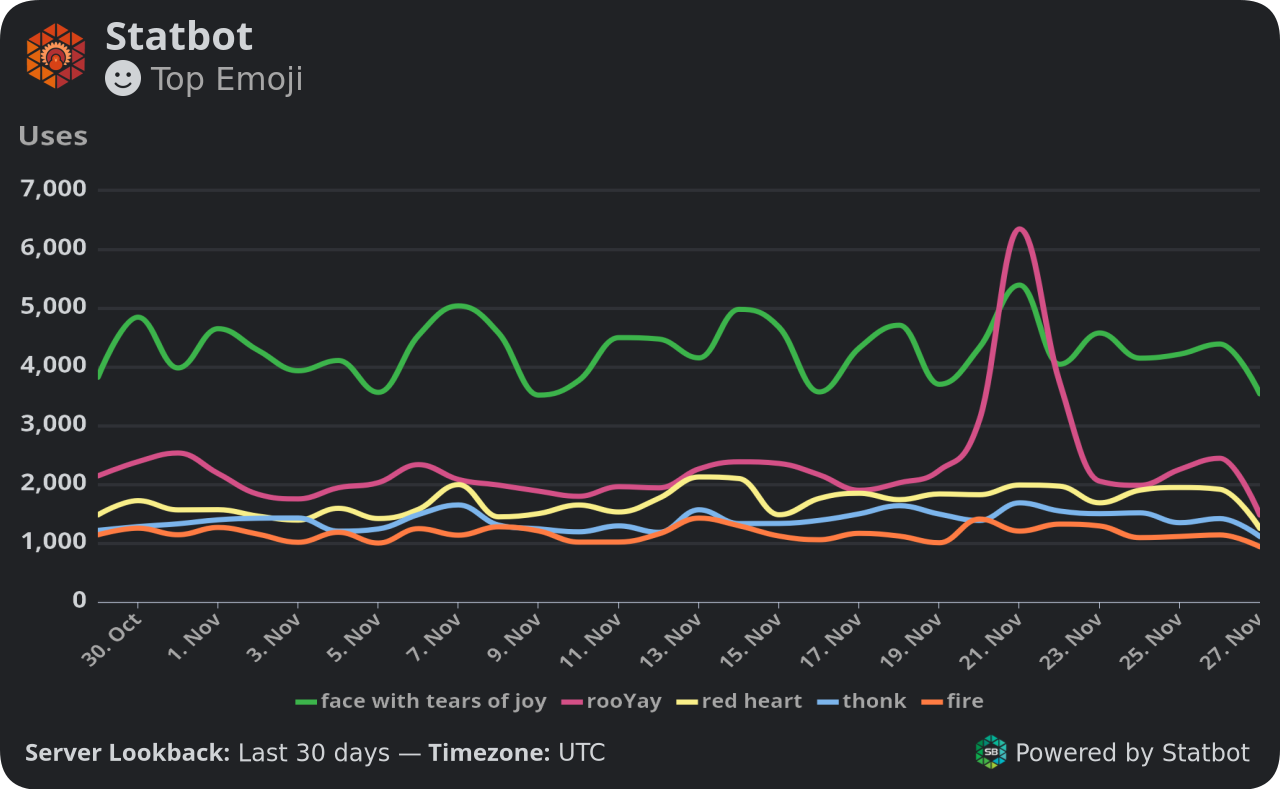
/chart emoji— Your top emojis drawn as lines over time.
/top— Gains a Top Emoji page: the full ranking with counts, ten to a page. Its Overview page also lists your top three./stats user— Gains the one emoji that member uses most, with its count./stats channel— Gains that channel's top three./info emoji— Lists your server's own emojis and stickers with their use counts, as described under Find the Emojis Nobody Uses.
/stats emoji, /chart emoji, and /top rank emojis only. /info emoji is where sticker counts appear.
Who can run them. Every member can, unless you have restricted Statbot's commands with your Command Access Level setting.
Without Data+. /stats emoji, /chart emoji, /info emoji, and the Top Emoji page in /top reply that Data+ is required. /stats user, /stats channel, and the rest of /top work as before, without the emoji parts.
The Stats Commands docs have the full usage.
Statroles: Emoji Condition (Statroles+)
A new Emoji condition gives and removes roles for the emojis a member uses, or for the reactions their messages receive. For example, give a role to every member whose messages collect 50 reactions from other members in a month.
It needs Statroles+. Data+ is not needed.
- Used — Counts the emojis and stickers a member used. You choose which kinds count.
- Received — Counts the reactions other members add to the member's messages. Every reaction from another member counts, so one member reacting to several of someone's messages adds one for each.
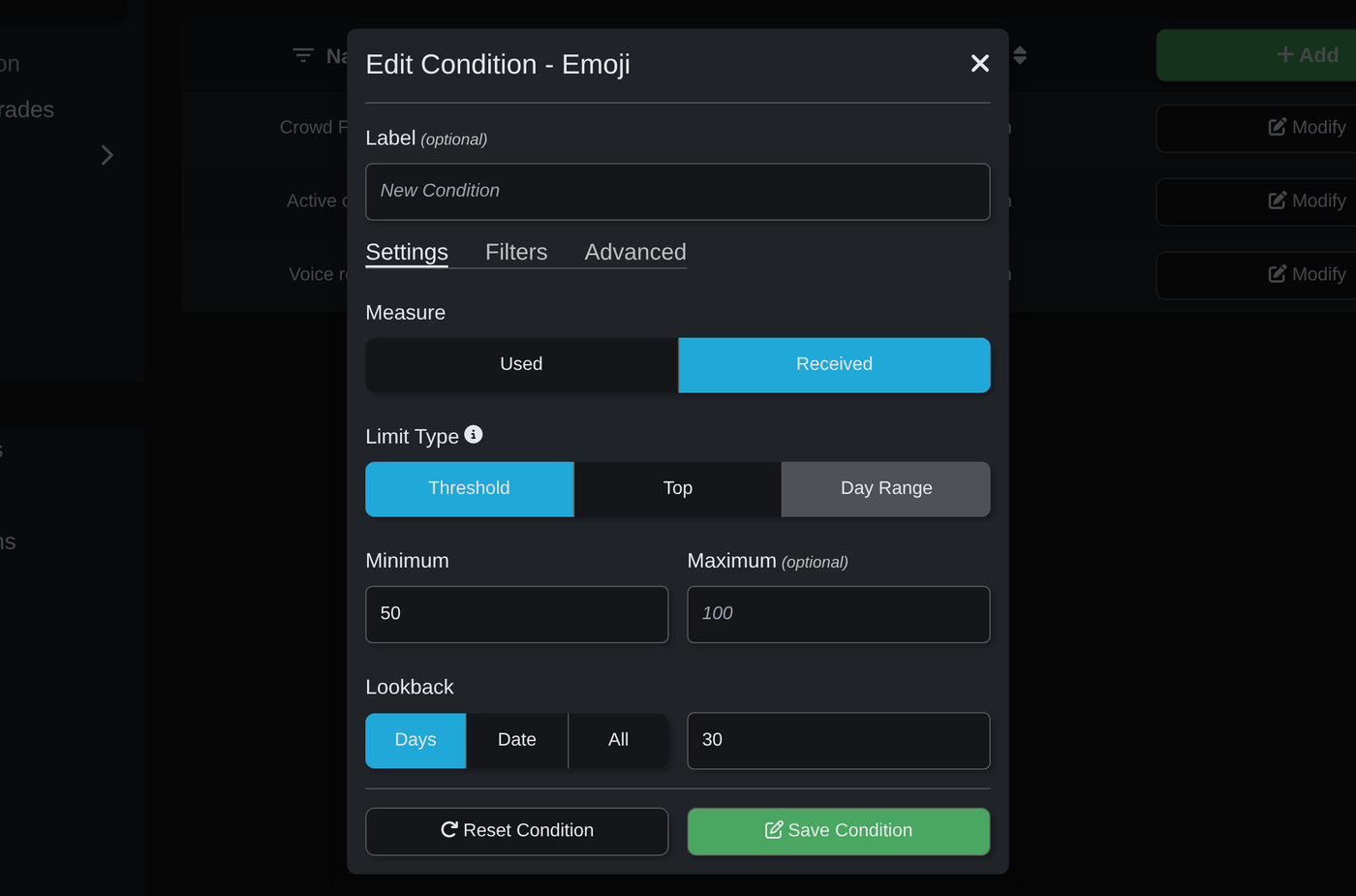
A new Emoji Statrole works from what Statbot has already counted, so it does not start from zero. You can limit it to chosen emojis, and the usual Statrole limits and filters apply. It looks back up to 30 days, or further with History. Every setting is on the Statroles Conditions page.
Statdocks: Emoji Counter (Statdocks+)
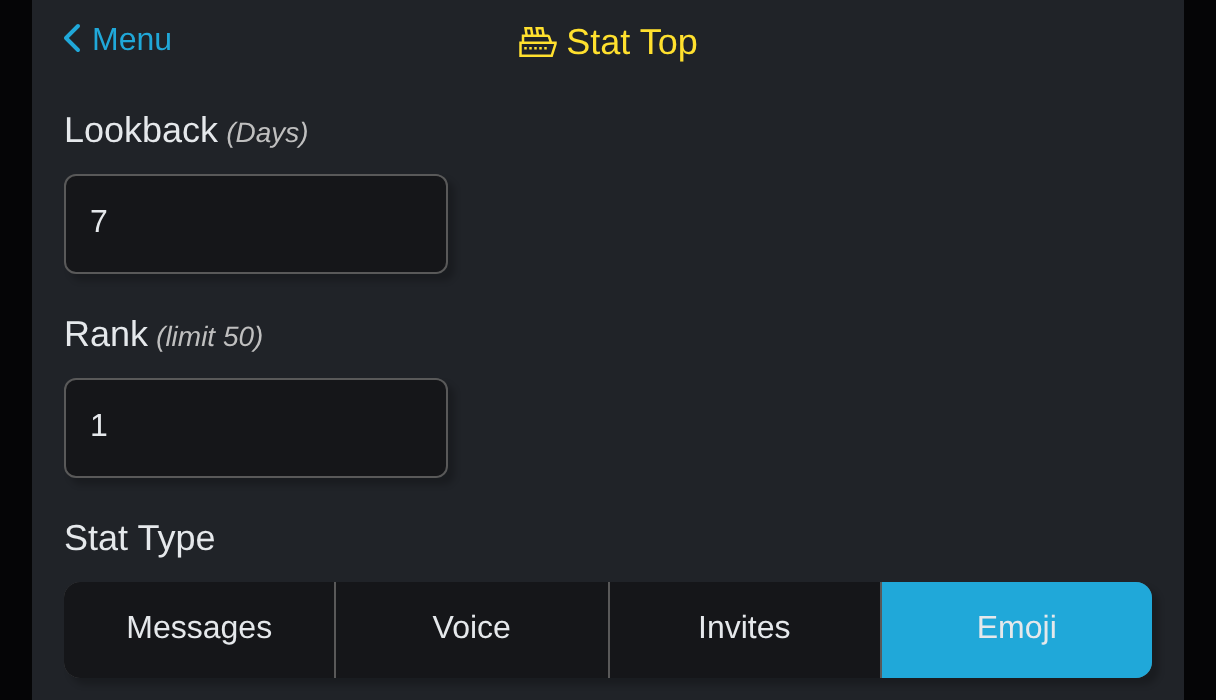
A channel name can now show your emoji stats: a count of emoji uses, an average, a change over time, or your top emoji. For example, set a channel's text to Top emoji: and add a Stat Top counter at rank 1 with a 7-day Lookback. The channel then always carries the emoji your server used most over the last 7 days. A standard emoji shows as the emoji itself. One of your server's own shows its name, because a channel name cannot hold its picture.
It needs Statdocks+. Data+ is not needed.
You build an emoji counter in the Website Editor, under the Builder menu. The /counter command cannot make one. Each counter has its own Lookback, set in whole days, and updates once an hour at most. A Lookback over 30 days needs History.
The Statdocks Counters docs list every option.
How Emojis Are Counted
Three rules decide most of what you see:
- One use per message — The same emoji used several times in one message counts once.
- Each reaction is one use — A member who reacts to ten messages adds ten, and a member who adds three different emojis to one message adds three.
- Not counted — Custom emojis and stickers from other servers that members use in yours, Discord's built-in stickers, and anything used by a bot. Reactions that members add to a bot's message do count.
Four more rules: the first minute, own reactions, skin tones, and privacy
- The first minute — A reaction removed within 1 minute is not counted, and neither is anything in a message deleted within 1 minute of being sent. A message edited within that minute is counted as it reads after the edit. After the minute the count is fixed: a later edit neither adds nor removes emojis, and a reaction or message removed later stays counted.
- Own reactions — A reaction a member adds to their own message counts as an emoji use like any other. It is left out only where Statbot counts the reactions a member receives, in the Statroles condition above.
- Skin tones and hearts — Skin-tone variants count as the base emoji. A red heart sent from Discord's emoji picker, or by typing
:heart:, counts. A bare ❤ character pasted in as plain text does not. - Privacy — If a member turns on
/privacy, their emoji uses stay in the server's totals but are no longer tied to them.
The Emojis page lists the same rules under How emojis are counted.
Message History Sync (History)
A sync fetches your server's older messages from Discord, back to the day the server was created. It now also brings in the emojis written in those messages, the stickers sent with them, and each message's reaction totals. A sync uses one sync credit, and a server's first History upgrade includes one. To see or use the emojis a sync brings in, a server also needs Data+, Statroles+, or Statdocks+.
- Emoji stats — A sync never removes emoji stats and never counts anything twice. It adds only what Statbot has not already counted, live or in an earlier sync.
- Synced before today? — The messages that sync fetched have no emojis yet. Sync that range again to bring them in. That uses another credit.
- Synced reactions — They are not tied to any member. They count toward the emoji's totals and its channel, but not toward any member's stats or any Statrole, because the sync reads each message's reaction totals and does not look up who reacted.
Find the Emojis Nobody Uses (Data+)
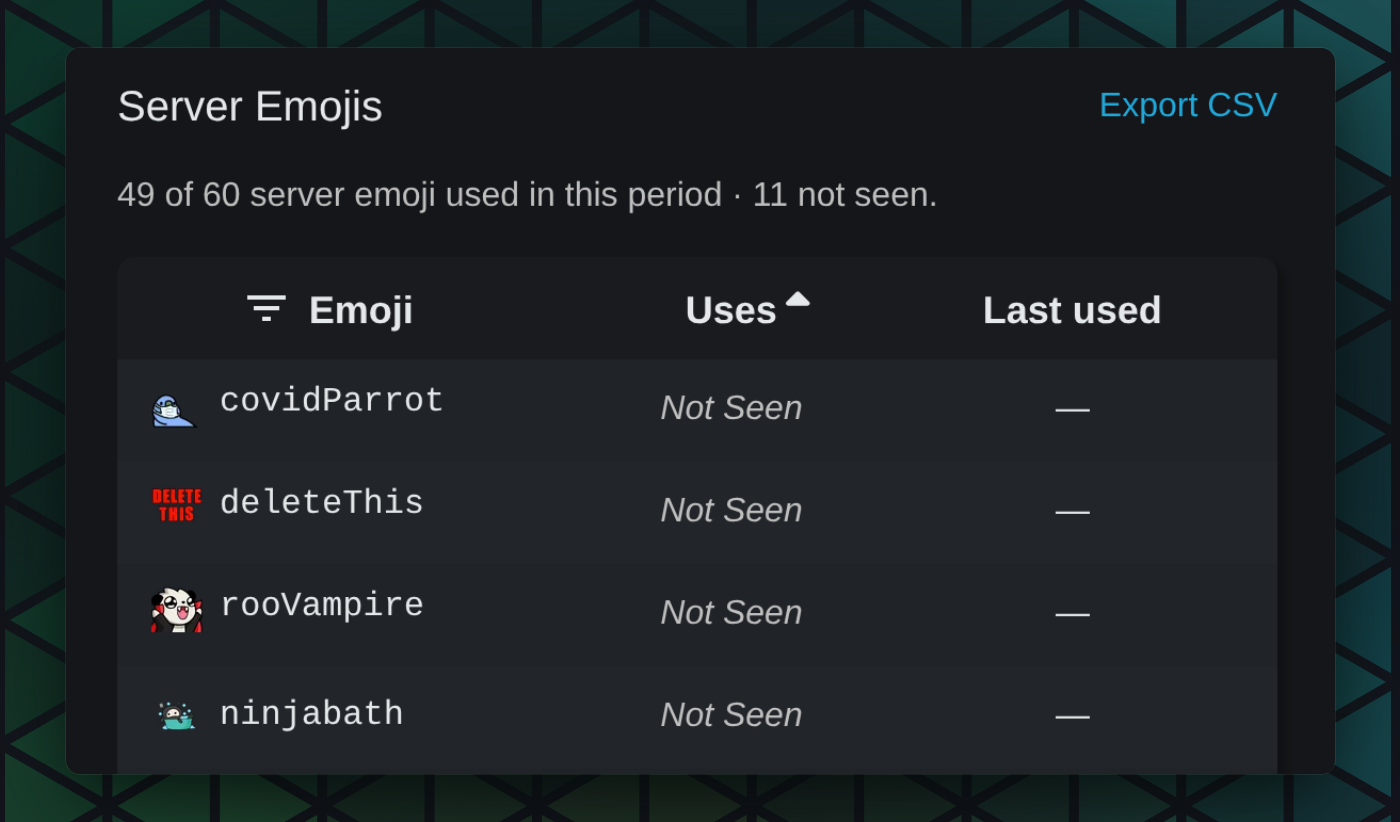
On the Emojis page, the Server Emojis table lists each of your server's own emojis with its Uses and the date it was Last used in the period on screen. An emoji with no counted uses in that period is marked Not Seen.
- Open your dashboard and pick Emojis.
- Clear any filters that are set, so the table shows everything counted in your server.
- Set the date range to 30 days, or longer if you have History. The page opens on your server's Lookback setting, which is 14 days unless an admin has changed it under Settings > Stats.
- In Server Emojis, sort by Uses, lowest first. The Not Seen emojis come to the top.
- Go through the five checks below before you delete anything.
- Check the period — Not Seen means not seen in the period on screen. A seasonal emoji can go unused in November and be everywhere in December, and one you added last week has had little time to be used.
- Last used — A dash there means no use in the period. It does not mean the emoji has never been used.
- Bots — Their uses are not counted, so an emoji that only a bot posts shows as Not Seen.
- Other servers — Statbot sees only your server, so an emoji your members use elsewhere can still show as Not Seen here.
- Hidden channels — Nothing is counted in a channel Statbot cannot see, so an emoji used only there shows as Not Seen.
Discord counts static and animated emoji slots separately. To check one set at a time, filter the page by type: animated, or static (everything except animated).
Deleting an emoji does not erase its history. It keeps the uses counted before it was deleted.
Prefer Discord? /info emoji lists every one of your server's own emojis and stickers with its use count, including the ones at zero. It counts over your server's Lookback setting, 14 days by default. For a longer look, use the dashboard.
FAQ
What Needs Which Upgrade?
| What is new | Needs |
|---|---|
| The Emojis page on your dashboard | Data+ |
| Emojis in Discord commands | Data+ |
| The Emoji condition in Statroles | Statroles+ (Data+ not needed) |
| The Emoji counter in Statdocks | Statdocks+ (Data+ not needed) |
| Emojis from a Message History Sync | History and one sync credit, with Data+, Statroles+, or Statdocks+ to use them |
| Export CSV on the Emojis page | Drilldowns, with Data+ |
| The emoji API endpoints | All five upgrades: History, Data+, Drilldowns, Statroles+, and Statdocks+ |
What Does a Server With No Upgrades Get?
The Emojis page shows an upgrade prompt, the emoji commands ask for Data+, and the example page lets you look around. Statbot is counting for you already, with nothing to set up, so up to 30 days are there the moment you add Data+.
Is There an API for Emoji Stats?
Yes. Statbot's API has new emoji endpoints for your server's emoji and sticker list, uses over time, totals, and the top emojis, channels, and members. It is for servers with all five upgrades active at once: History, Data+, Drilldowns, Statroles+, and Statdocks+. The API docs have every endpoint.
Another question? Ask in #support on the Statbot support server. Have an idea for what emoji stats should do next? Let me know in #feature-requests!
Try It
Already have Data+? Open your dashboard and pick Emojis, or run /stats emoji in Discord.
No Data+ yet? The example page shows the full Emojis page on Statbot's own server.
Have another upgrade? The Emoji condition is in the list when you add a condition to a Statrole, the Emoji counter is in the Statdocks Website Editor, and Message History Sync is under Settings > Stats.
Keep up-to-date on Statbot changes by subscribing to the @Bot Updates role in the Statbot support server!